
Step 2: Link a Channel to a Project
Once your Newforma Konekt hub is connected to a Microsoft organization, you can link Public or Shared channels to individual projects.
You must have a Project Administrator role to complete this task.
Step 1: Open Channel Settings
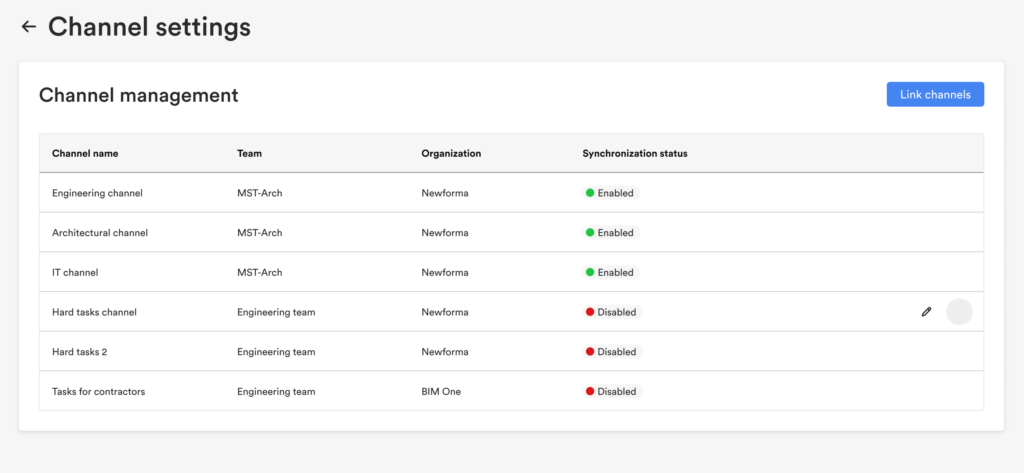
Open the project and select the Channels activity center. Click Channel settings in the top right.
The Channel settings page opens, listing all connected channels and their sync status. If this is your first time linking a channel, the page will be empty.
Step 2: Open the Link Channels Modal
Click Link channels in the top right of the Channel settings page.
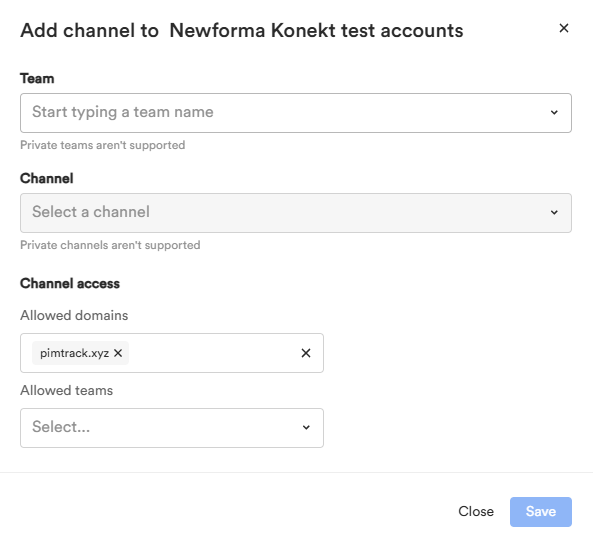
The Link channels modal opens, which includes:
- A team search field and a channel search field
- Allowed domains and Allowed teams fields to control access to the channel within the project
Step 3: Select a Team and Channel
Type the name of the team you want to link from and select it from the results. Once a team is selected, choose a channel.
Search matches from the start of the team name. For example, searching “North” will find “North Campus Expansion,” but searching “Campus” will not.
Only Public and Shared channels are supported. Private teams and private channels do not appear in the results.
Step 4 (Optional): Configure Channels Access
To restrict who in the project can view the linked channel, add one or more Allowed domains or Allowed teams. Only project members matching the specified domains or teams will have access to the channel’s content.
Your organization’s domain is automatically added as an allowed domain.
Step 5: Save
Click Save. Newforma Konekt begins retrieving available message history from the channel and continuously archives new activity going forward.
The linked channel appears in the Channel settings page.