

Step 4: Browse Channel Posts and Message Details
The Channels activity center displays archived posts from linked Microsoft Teams channels. You can browse posts, view message details, and access edit history and reactions directly from the project.
Select a Channel
Open the project and select the Channels activity center. The left panel displays linked channels organized by organization, team, and channel. Select a channel to load its posts in the main panel.
Browse Posts
Posts are displayed in chronological order. Each post shows the following:
- Author name and timestamp
- Message preview
- Reaction count
- Reply count
- File count
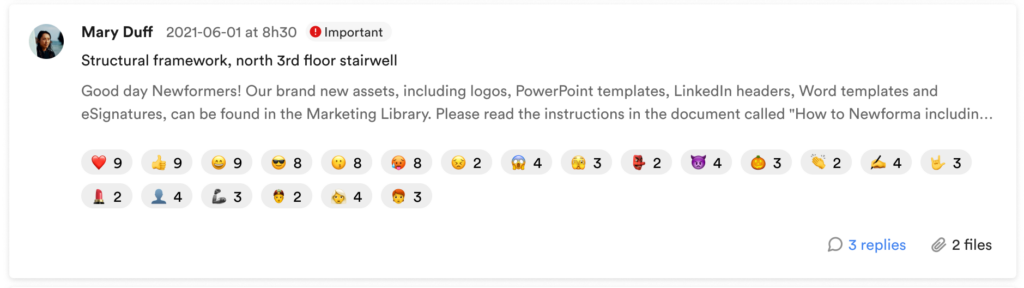
Posts may carry one of three labels:
- Edited: The message was modified after it was originally posted. The current version is displayed. Select the History tab to view previous versions.
- Deleted: The message was deleted in Microsoft Teams after it was posted.
- Important: The message was marked as important in Microsoft Teams.
Edits and deletions that occurred before a channel was linked, or while sync was disabled, may not be fully reflected. See the Channels Overview article for details.
View Message Details
Click a post to open its detail side panel. The Details tab displays the full message content, including replies and reactions.
Click on any reaction to see exactly who reacted and when.
View and Download Attachments
Select the Attachments tab in the detail side panel to view a list of files attached to the post. These files can be downloaded.
You can preview the file if it is a PDF or image.
View Edit History
Select the History tab in the detail side panel to view the full activity history of the post. The History tab captures the following events:
- Post created, edited, deleted, and restored
- Reactions added and removed
- Files added and removed
- Important mark added and removed
- Snapshots of posts at the time of creation and edits
Where Microsoft Teams reported an edit but could not identify what changed, the History tab displays a note indicating this.