

Step 1: Connect to a Microsoft Organization
To use the Channels activity center, your Newforma Konekt hub must be connected to a Microsoft organization. This is a one-time setup that unlocks Channels for every project in your hub.
You must have a Hub Administrator or Hub Owner role in Newforma Konekt and Microsoft 365 tenant admin access to complete this setup.
Step 1: Open Microsoft Teams Settings
In Newforma Konekt, open the Integrations page from the general menu and select Connect on the Microsoft Teams integration.
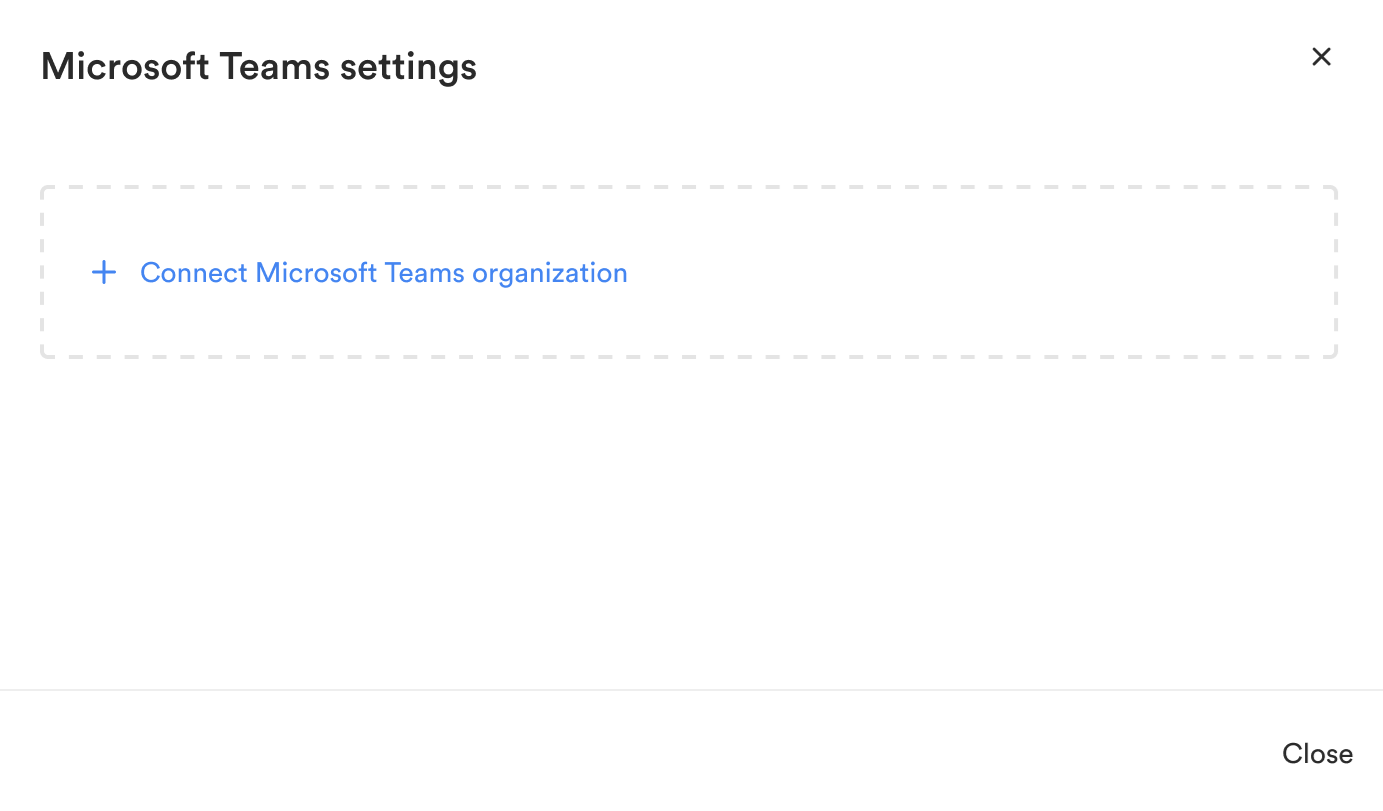
This opens the Microsoft Teams settings modal.
Step 2: Connect Your Microsoft Teams Organization
In the Microsoft Teams settings modal, click Connect Microsoft Teams organization.
A Microsoft sign-in window opens. Sign in with your Microsoft 365 tenant admin account.
A permissions screen open.
Step 3: Accept the Required Permissions
Review the permissions Newforma Konekt is requesting and select Consent on behalf of your organization to approve access for all users in your organization.
Click Accept.
Step 4: Confirm the Connection
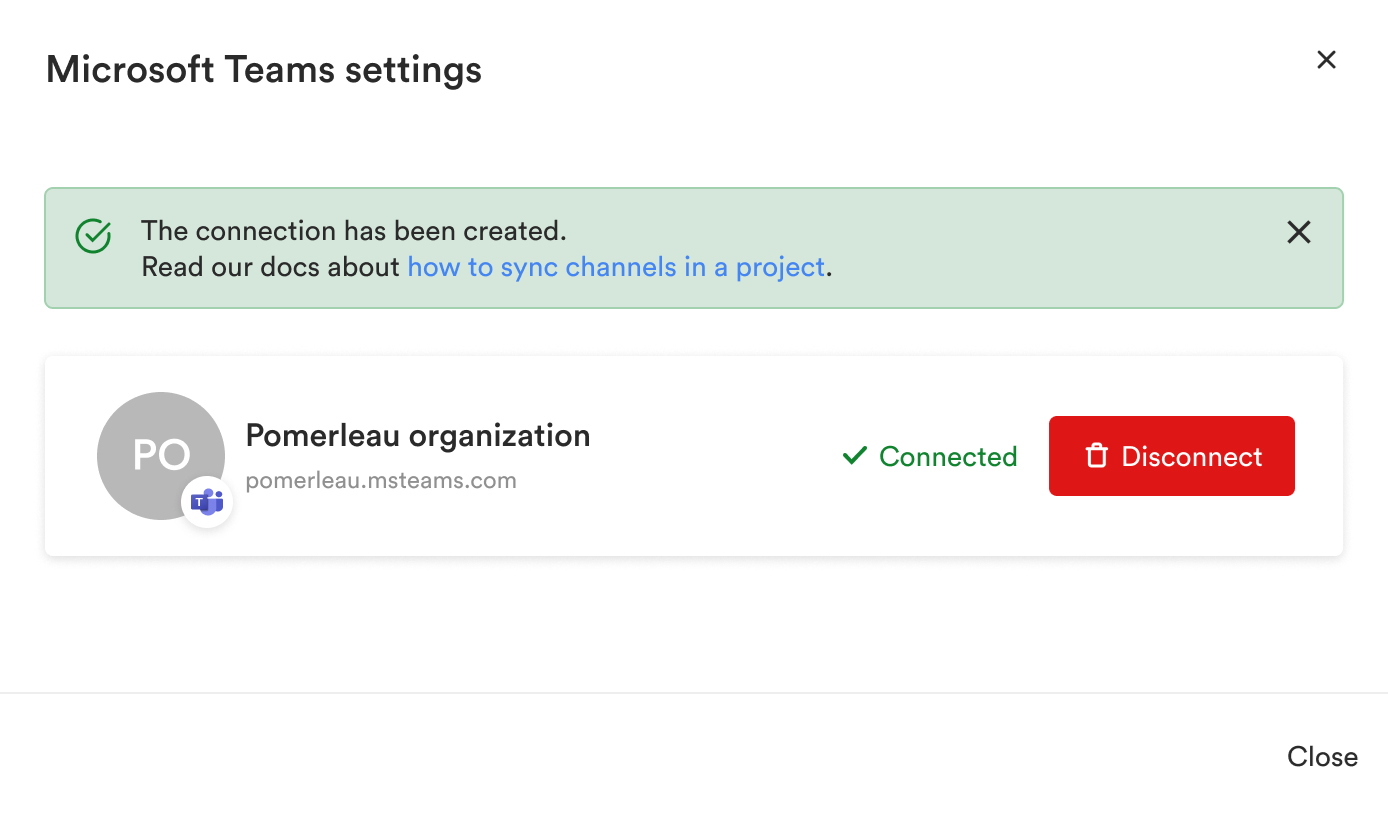
Once connected, your organization appears in the Microsoft Teams settings modal with a ✓ Connected status and a confirmation banner. Your hub is now connected and Project Administrators can begin linking channels to their projects.
Disconnect a Microsoft Teams Organization
If you need to disconnect an organization from Channels, click Disconnect in the Microsoft Teams settings modal. In the resulting confirmation dialog box, read the warning carefully before proceeding.
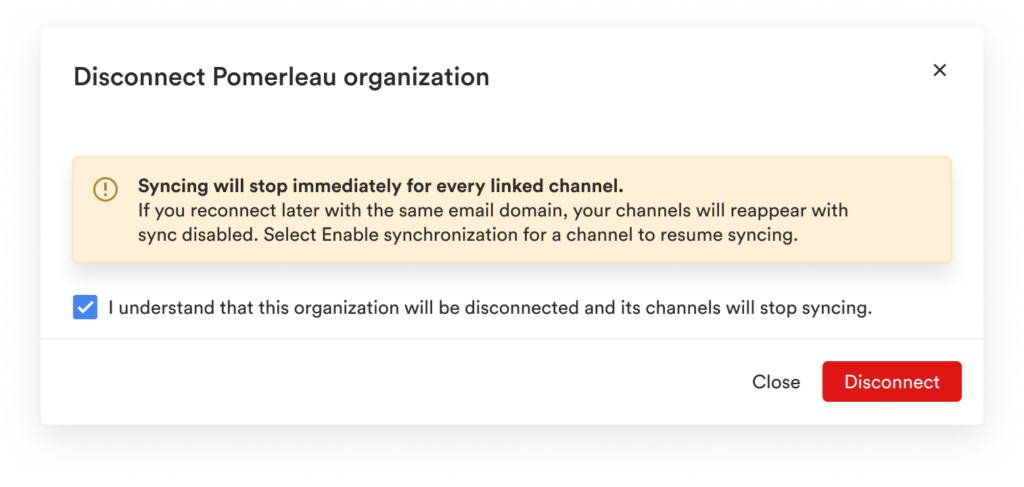
To confirm, select the acknowledgment checkbox. The Disconnect button becomes active once the checkbox is selected. Click Disconnect to complete.
Once disconnected, all channels linked through that organization stop syncing. The organization can be reconnected, but must be set up again as a new connection. New posts created during the disconnected period are retrieved when the connection is re-established, but edits and deletions that occurred during that period may not be fully reflected due to how Microsoft manages historical data.