

Categories and Elements Feature Overview
The Categories tab in the NextGen viewer groups model elements by their IFC entity type.
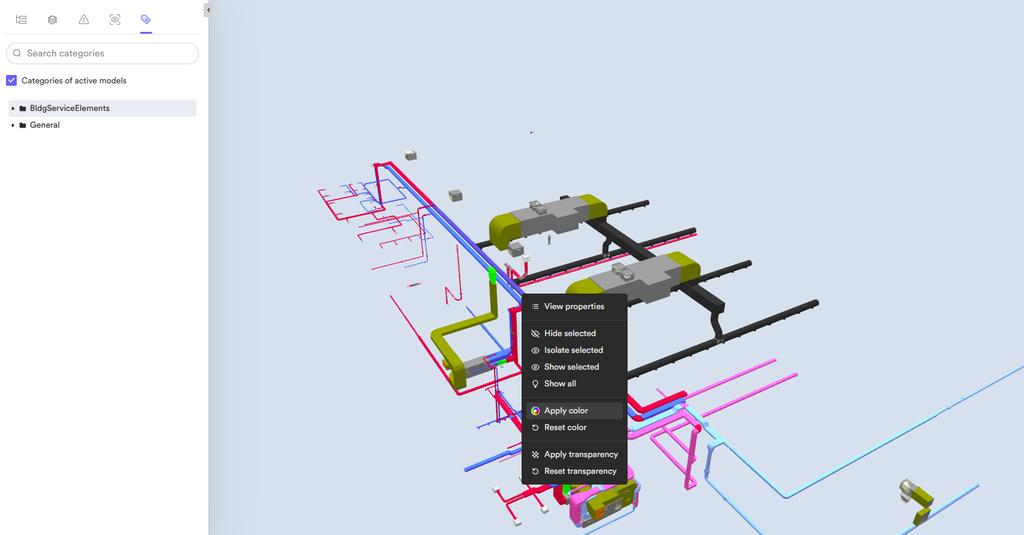
Categories exist so you can apply color, transparency, and visibility to a whole group of elements at once, making it easier to tell element types apart at a glance in the 3D model.
You can also override a category-wide color, transparency, or visibility setting for an individual element when needed.
Categories are generated automatically from IFC entity data already present in the model, so no manual setup is required.
How It Works
Project-Level, Category-Level, and Element-Level Settings
You can apply color, transparency, and visibility at three levels:
- At the project level, set from the Project option in Viewer settings, a setting on a category applies to that category persistently in every model loaded in the viewer, active or inactive, and requires Project Admin permissions.
- At the category level, set from the Categories tab, a setting applies to every element sharing that category.
- At the element level, a setting applies only to the selected element.
When more than one level is set, the more specific level takes priority: an element-level setting overrides a category-level setting, and both override the project-level setting.
Resetting an element’s override returns it to whatever value is currently set at the category level. For example, if you set a category to green and one of its elements to blue, resetting that element’s color turns it green, matching its category’s color.
Project-level settings persist across browser refreshes, exits, and model resets, unlike category-level and element-level settings.
Where Category Values Come From
Category values come from the IFC entity data in the model, typically set in a BIM authoring tool such as Revit. These values don’t change based on anything you configure in the viewer.
To change an element’s category or add a new category, update the IFC entity data in the BIM authoring tool and upload a new version of the model. The category values will reflect the new IFC entity data.
Filtering by Active Models
Categories can be filtered to show only models currently open in the viewer, or expanded to show every available category regardless of which models are open.
Permissions and Prerequisites
- Access to the NextGen viewer in the Viewer activity center.
- The model must be uploaded as an IFC file with entity type data intact.
- Project Admin permissions to set project-level color, transparency, and visibility. Editors and Readers can apply these settings to categories and elements in the model.
Expected Behaviors
- Color, transparency, and visibility applied directly to a category or element are session-based. They reset when you exit the activity center, refresh the browser, or reopen the model, unless the configuration is saved as a saved view. Where a project-level setting exists for the affected category, the category returns to the project-level setting rather than to its default appearance.
- Project-level color, transparency, and visibility set from the Project option in the viewer settings persist without being saved as a saved view.
- Project-level color, transparency, and visibility currently do not carry over in a saved view. For example, a category in a saved view will show up in its default color even if a different color is set for it at the project level.
- Certain IFC entities, such as spaces, have a category in the viewer but can’t be colored or have a transparency setting applied.
While a Reader can set and modify category and element colors, they can’t save these configurations as a saved view.