

Project Access
Overview
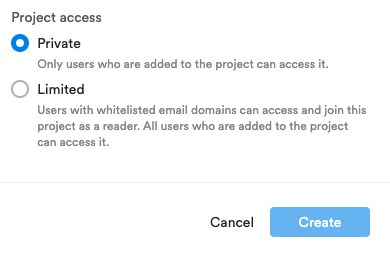
Hub owners and admins can manage their projects’ visibility by navigating to the Project settings page. Projects can either be set as private or limited.
- Private – Only users directly added to the project can access it.
- Limited – Users directly added to the project can access it. Users with whitelisted email domains can view these projects but will not appear in the project’s user list.
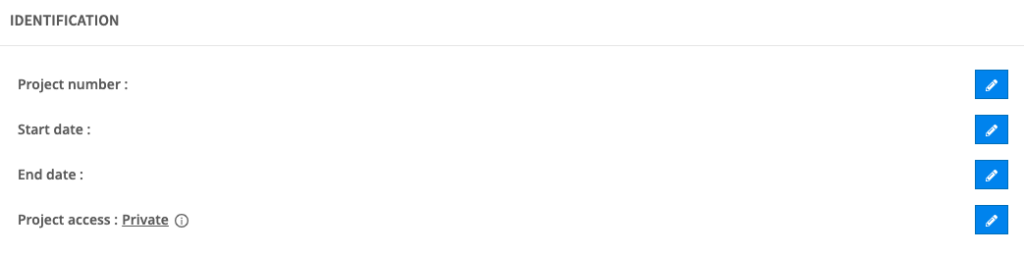
By default the project access is set to Private.
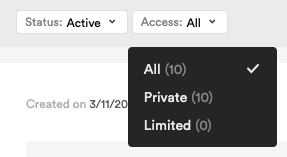
Other project members will be able to identify which projects are private or limited from the Projects page. They can also filter by project access.
How to Whitelist a Domain
From the Hub settings page, hub owners and admins can whitelist a domain to easily give access to limited projects to other hub members.

How Does Whitelisting Work?
Whitelisting a domain grants any user with a matching email domain access to view all limited projects and their activity centers within the hub, without needing to assign them to individual projects. These users access limited projects with the permissions of the Reader role.
Reader access lets whitelisted users view eligible activity centers within limited projects, but it doesn’t grant participation in any workflow. For instance, a whitelisted user can’t be selected in the From or To fields when a licensed user logs an RFI, submittal, or change management item.
To allow a whitelisted user to participate fully in these workflows, assign them to the relevant projects with any role except Reader.
Whitelisted domains must include a domain name and top-level domain (TLD), such as .com, .org, or .net. There’s no limit to the number of domains you can whitelist, and domains can be removed at any time.