

Customize Attribute Dropdowns for Submittals
Project teams often need submittal dropdown menus to match their contract terms, spec sections, and review response codes. Submittal attributes control these choices. You can add, rename, reorder, and delete values, and set an optional default, so everyone on the project selects from the same list.
For example, a project admin adds Revise and resubmit to the Official response attribute. The next time a project member submits an official response, Revise and resubmit is available in the Response dropdown menu of the Submit official response modal. After the response is submitted, Revise and resubmit appears on the Details tab and the Workflows tab of the submittal’s side panel.
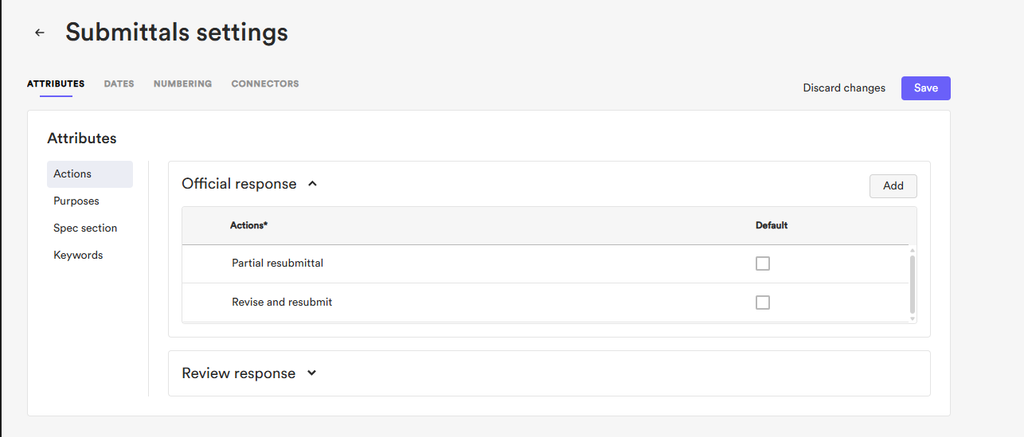
How Submittal Attributes Appear in Dropdown Menus
Each submittal attribute supplies the values for one or more dropdown menus in the Submittals activity center, from logging a submittal to responding to it, closing it, and editing it in the side panel.
| Attribute group | Attribute name | Dropdown menu name | Where it appears |
|---|---|---|---|
| Actions | Official response | Response | Submit official response modal |
| Actions | Review response | Response | Submit response modal |
| Purposes | Create/Log/Received | Purpose | Log submittal modal |
| Purposes | Forward | Purpose | Forward for review modal |
| Purposes | Close | Purpose | Close submittal modal |
| Purposes | Reopen | Purpose | Reopen submittal modal |
| Spec section | Spec section | Spec section | Log submittal modal and side panel |
| Keywords | Keywords | Keywords | Log submittal modal and side panel |
The number of values in a submittal attribute, and whether a default is set, change what you see in the matching dropdown menu:
- Several values with a default: The default is preselected. You can select another value.
- Several values with no default: You select a value from the list.
- One value: The Response and Purpose dropdown menus are hidden, and the sole value is applied automatically. For example, if the Close attribute has only one value, Complete, the Purpose dropdown menu doesn’t appear in the Close submittal modal. Every submittal you close records Complete as its purpose. Conversely, dropdown menus in the Log submittal modal always stay visible, even with one value.
The value selected or applied in a modal is recorded on the Details tab and the Workflows tab of the submittal’s side panel.
Open Submittal Attributes
Submittal attributes are managed in Settings, and only project admins can open them.
To open submittal attributes:
- Open the Submittals activity center.
- Select Settings.
The Attributes tab opens by default and lists the submittal attributes under Actions, Purposes, and the remaining standalone attributes.
Add a Value to a Submittal Attribute
Adding a value to a submittal attribute makes the value selectable in the matching dropdown menu.
To add a value to a submittal attribute:
- In the Submittals activity center, select Settings.
- On the Attributes tab, find the attribute you want to change, such as Keywords.
- Select Add.
- In the modal that appears, enter the value and select Add.
- On the Attributes tab, select Save.
The value is added to the attribute and appears in the matching dropdown menu the next time you or another project member use it.
For example, if you add Curtain wall to the Keywords attribute, Curtain wall becomes selectable in the Keywords dropdown menu of the Log submittal modal and in the Keywords field of the submittal side panel.
Rename a Submittal Attribute Value
Renaming a submittal attribute value changes how the value appears in the matching dropdown menu.
To rename a submittal attribute value:
- In the Submittals activity center, select Settings.
- On the Attributes tab, find the attribute that contains the value.
- Select the value and enter the new name.
- On the Attributes tab, select Save.
The renamed value appears in the matching dropdown menu for future selections.
Reorder Submittal Attribute Values
The order of values in a submittal attribute sets the order they appear in the matching dropdown menu.
To reorder submittal attribute values:
- In the Submittals activity center, select Settings.
- On the Attributes tab, find the attribute you want to reorder.
- Move the values into the order you want.
- On the Attributes tab, select Save.
The matching dropdown menu lists the values in the new order.
Set a Default Value for a Submittal Attribute
A default value for a submittal attribute is preselected in the matching dropdown menu. Setting a default is optional.
To set a default value for a submittal attribute:
- In the Submittals activity center, select Settings.
- On the Attributes tab, find the attribute.
- Mark the value you want as the default.
- On the Attributes tab, select Save.
The default value is preselected in the matching dropdown menu. You and other project members can still select another value.
You cannot set a default value for the Keywords attribute.
Delete a Submittal Attribute Value
Deleting a submittal attribute value removes the value from the matching dropdown menu for future selections.
To delete a submittal attribute value:
- In the Submittals activity center, select Settings.
- On the Attributes tab, find the attribute that contains the value.
- Select Delete next to the value.
- On the Attributes tab, select Save.
The value no longer appears in the matching dropdown menu. Submittals that already use the value keep it until someone edits the field, and the submittal’s History tab still shows it.
Every submittal attribute must keep at least one value, so you can’t delete the last remaining value.
If deleting a value leaves the attribute with one value, the matching Response or Purpose dropdown menu is hidden and that value is applied automatically. Dropdown menus in the Log submittal modal stay visible.