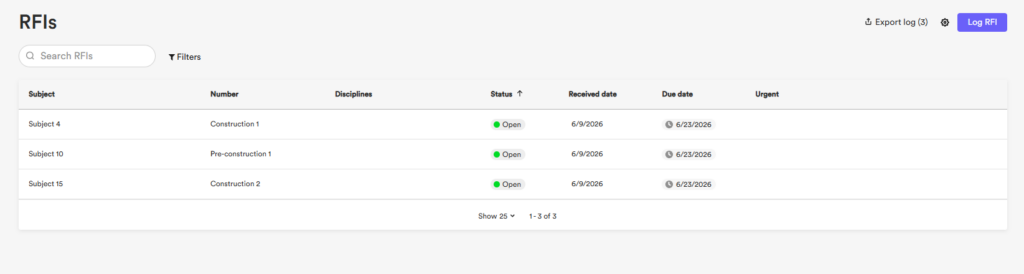

Configure Item Numbering in RFIs
The RFIs activity center supports configurable item numbering, allowing you to automate how RFI items are incrementally numbered at creation.
In the RFIs activity center, open Settings and select the Numbering tab. You will see one section:
- Item numbering
Step 2: Configure Item Numbering
Under Item numbering, select one of the following rules:
- Auto-increment: Items are assigned sequential numbers at creation. Configure the number of digits, starting number, and an optional prefix (e.g., L01).
- Auto-increment with a prefix based on type: Items are assigned sequential numbers at creation with a prefix derived from the RFI type selected at the time of creation in the Log RFI modal. Configure the number of digits and starting number (e.g., Construction 01).
- Manual entry: The Number field in the Log RFI modal must be filled in manually each time an RFI is created.
Select Save changes.
How Auto-Increment Rules Affect the Log RFI Modal
When an auto-increment rule is active, the Number field in the Log RFI modal shows “Auto”. The field accepts any combination of characters and can be overridden at any time.
When Auto-increment with a prefix based on type is active, each RFI type maintains its own independent counter. RFI types are a fixed list:
- None
- Design
- Pre-construction
- Construction
- Bid
As an example, a newly created RFI under type “Construction” starts at “1” if no other RFIs exist under that type, regardless of how many RFIs exist under other types.