Manage Users in a Hub
Add/Invite User
This is done in the User Management page by clicking the ‘Add User’ button located at the top right corner of the page. The invitee will automatically be added to the hub and will receive an email notification. If the user doesn’t have an account, they will be prompted to create an account to join the hub. A user can be an admin or a guest. If you have a large number of users you would like to add to the hub, we recommend using our ‘Import User’ and ‘Batch Assign’ features. When you add/invite a user to the hub, that user will receive an email notification that contains a link prompting them to join the hub. Please note that clicking the link contained in the email is not mandatory as the user is immediately added to it.
After inviting a user, their status may appear in orange. This means that this user hasn’t accepted the invitation yet.

Adding a user
- Click Add user at the top right of the page to prompt the Add User modal.
- In the email field, enter the email address of the invitee.
- Choose their ‘Hub Access level’.
- Click Add on the bottom of the modal.
Edit a user
- In the User Management page, click on the user that you want to edit.
- The side Panel will appear.
- In the Details tab, click on the ‘Access level’ field and choose the user’s hub role.
Removing Users from the Hub
Users can be easily removed from the hub and projects by following these steps:
- In the User Management page, click on the user that you want to remove.
- The Side panel will appear.
- Click on the ellipsis menu on the top left corner of the side panel.
- Select ‘Remove from hub’.
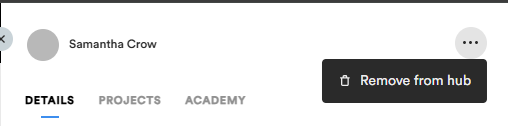
Please note that if this user has issues assigned to them, their issues will be unassigned. For that matter, we recommend reassigning all the user’s issues before doing so as once the issues are unassigned, it may be harder to find their previously assigned issues amongst all unassigned issues.
When a project is created, the hub owner is automatically added to the project as a project admin. If a project creator is removed from the hub, the creator role goes to the hub owner by default.
Batch Edit Users
- In the User Management page, select all the users you want to edit.
- Click on the ‘Edit users’ button in the top banner.
- Modify the information (Access Level or User Modules).
- Click ‘Apply”.
Batch Remove Users from Hub
- In the User Management page, select all the users you want to remove from the Hub.
- Click on the ‘Remove users’ button in the top banner.
- Confirm the action in the modal.
Note: This action cannot be undone. It is suggested to export the list of users before deleting any.
Resend Invitation
An invitation sent can time out. If that ever occurs, no problem! Simply resend the invitation to the hub with the resend link in the detail tabs.
- In the User Management page, click on the user that you want to send the invitation link.
- In the Details tab, look for the Account status field.
- Click on the ‘Resend’ link.
Track Changes to Users
The History tab in the User Management page lets admins track changes made to a specific user and by whom, including:
- Project assignments and removals
- Hub access level changes
- Module modifications
The History tab only displays changes made to the selected user. It does not show actions that this user has performed on other users.
To view changes made to a user:
- Log in to a hub as an admin and go to User Management.
- Select a user to open the side panel.
- Click the History tab to view changes made to the user.