
Import/Export a User List
2 minutes
9 months ago
Import User
It is possible to add and invite multiple users at the same time in your hub using the ‘Add User’ button. Simply write a multiple entries in the email field or copy/paste a list of up to 100 emails in it.
Step-by-step Procedure:
- Locate and click the ‘Add User’ button at the top right corner of the page.
- Write each email OR copy/paste a list of emails in the email field.
- Fill out any other information needed in the form.
- Click ‘Add’.
Export a User List
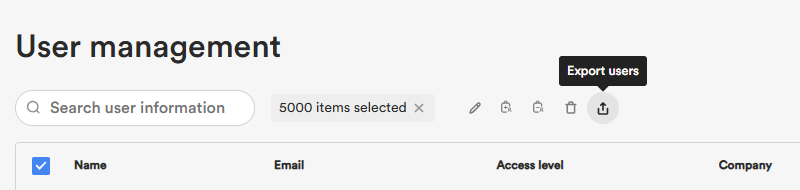
It is possible to export to Excel or csv format the list of up to 5000 of the users present in the hub using the ‘Export User’ feature. This feature allows you to keep a snapshot of all the users who were involved on the said project for reference purposes. This list can also be used to batch add your user list into a newly created hub.
Note: The limit of users that can be exported at a time is 5000.
Step-by-step procedure:
- Select a few or all users from the list and click the ‘Export User’ in the banner menu.
- Select a format (CSV or xlsx).
- Click Export to generate and download the file.